Ask the agent to build it
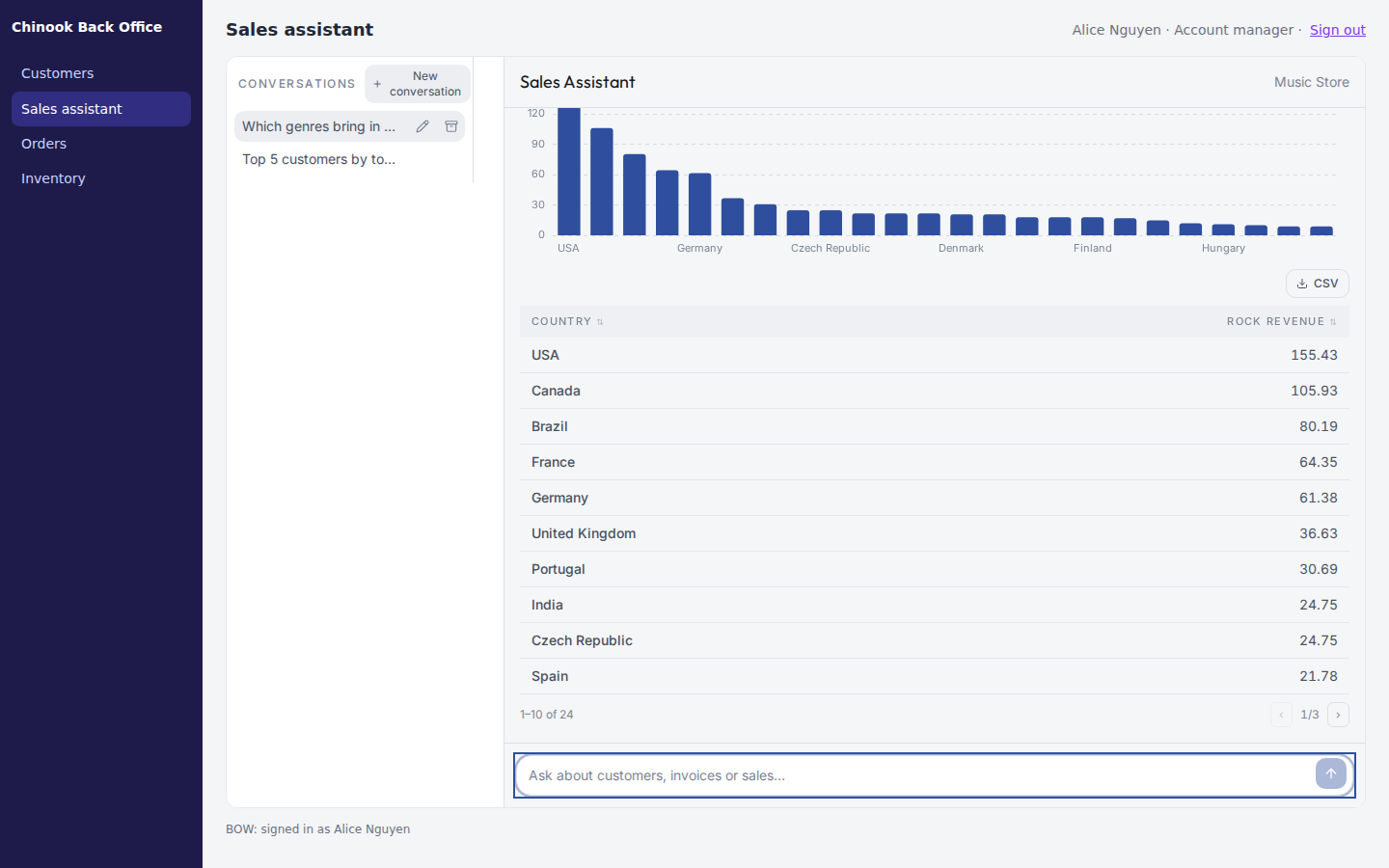
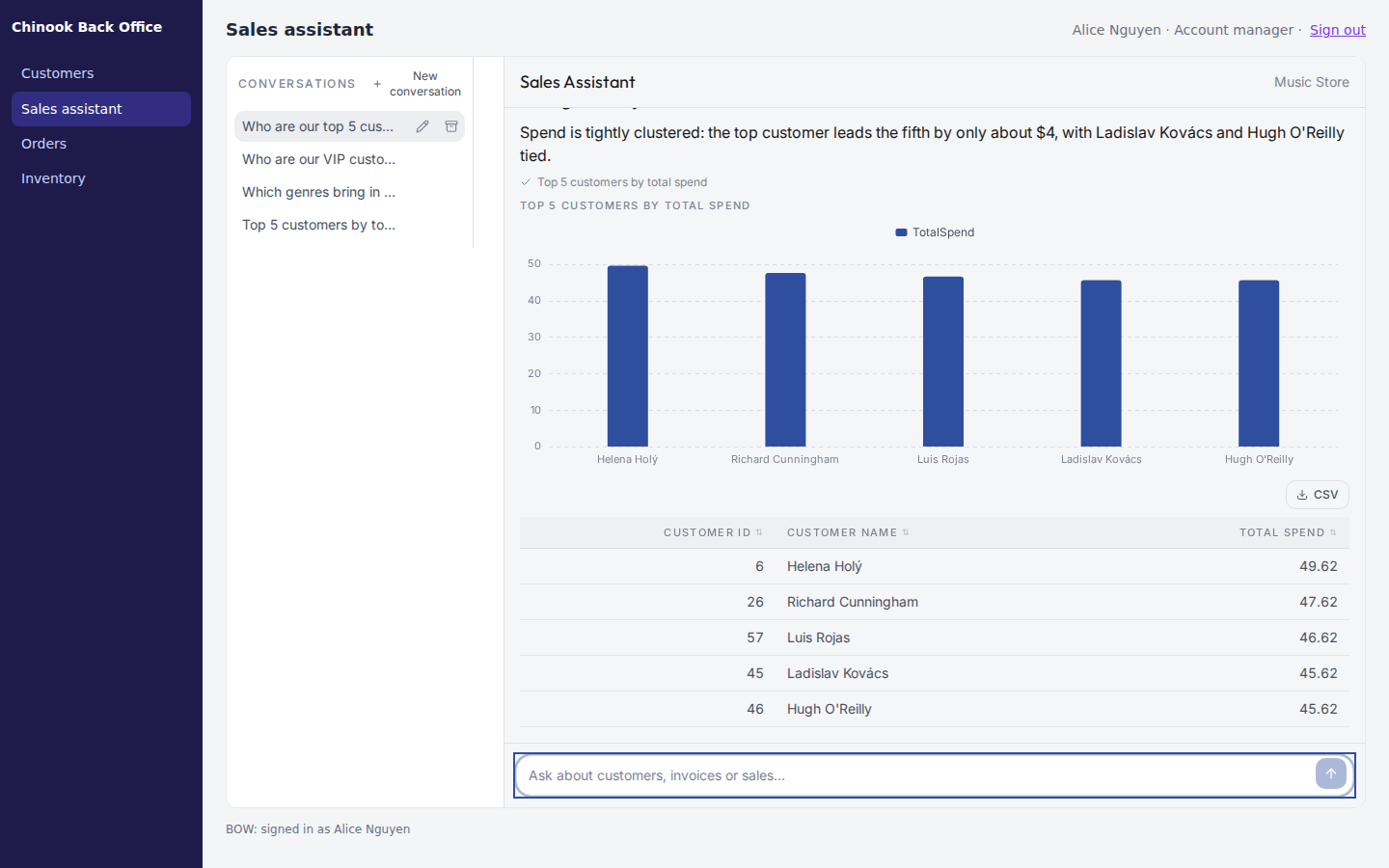
Start a report with the agent whose data the chatbot should use, and describe the assistant:Build a sales assistant app for our account managers: a chat with the Music Store agent where they ask questions about customers, invoices and sales, with their previous conversations listed on the side so they can come back to them.The Build a chat assistant skill guides the agent. It is enabled by default; check Agents → Skills → Catalog if it is missing or has an update. Say what matters to you, in plain words:
- Who uses it and where. “For our back office, in a floating panel” or “a full-page assistant”.
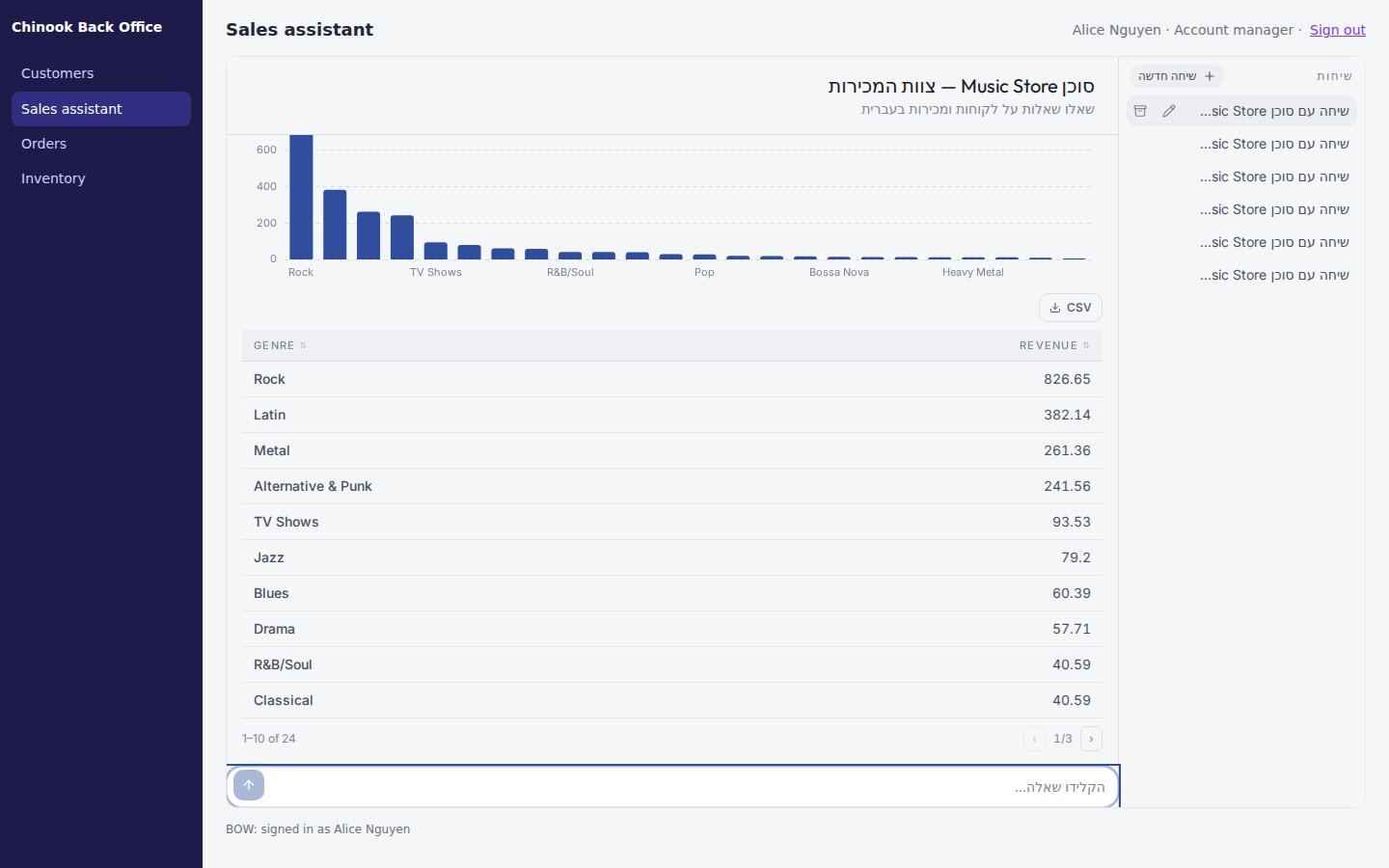
- Language and branding. “In Hebrew”, “use our logo and blue color”. The skill translates the chat controls as well as the text.
- Starter questions. “Offer three starter questions about this month’s sales.”
- Thinking. It stays hidden unless you ask for it. See Show thinking.
The instructions you give while building change the app’s interface. They do not change how the agent answers inside the app. To change answers, edit the agent’s instructions, or use a dedicated agent when the behavior should apply only to this assistant.
What the ready-made components give you
The agent builds the chat from components that BOW provides inside every artifact. They handle the parts that are easy to get wrong, so a generated app does not have to:
Answers render as safe Markdown. Results are the real query results of the answer, not numbers parsed from the text: each table holds up to 200 rows and 30 columns, and a chart appears only when the result can draw it as it is. Otherwise the app shows the table alone.
Every component takes a
labels object for its visible texts, so the whole chat can speak the app’s language, right to left included. A result table’s own words, such as its CSV button and paging text (“1–10 of 24”), follow along: they are in Hebrew when the chat labels are Hebrew, and otherwise in the viewer’s BOW language when that is Hebrew or Spanish. For other languages, pass the table keys in the same labels object (see Labels).
Choose the agents and model
Open the artifact’s settings, then Viewers → Agents and model.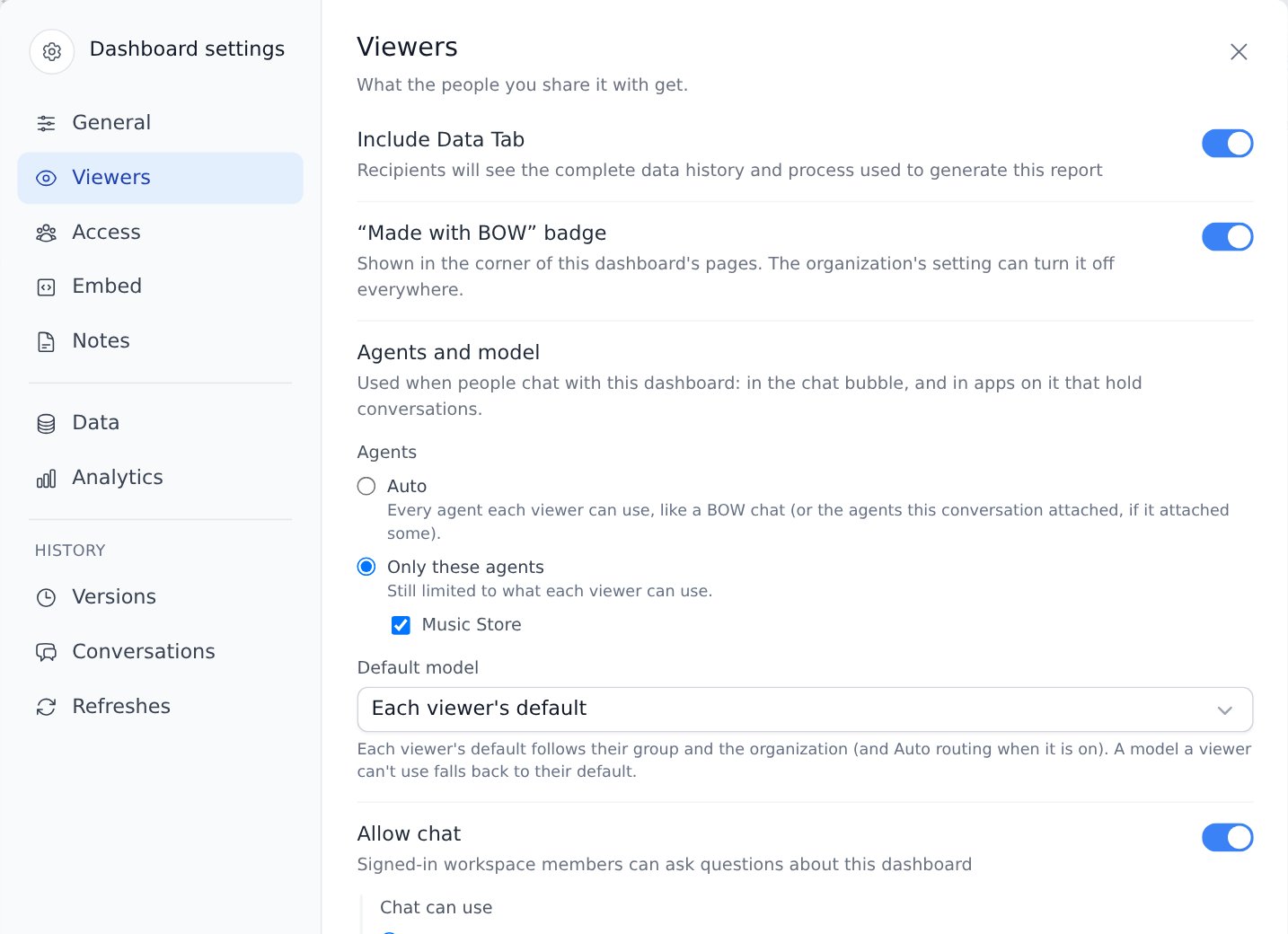
- Agents: Auto uses every agent each viewer can use, like a normal BOW chat. If the report the app was built from attached agents explicitly, Auto uses those. In the chat bubble, Auto uses only the agents the dashboard’s queries use.
- Agents: Only these agents limits the app to the agents you check. Each viewer is still limited to the agents they can use. It cannot be chosen while Chat can use is set to Dashboard data only.
- Default model: Each viewer’s default uses the viewer’s personal default, then their group’s, then the organization’s, including Auto routing when it is on. Choose a model to pin it. A viewer who cannot use the pinned model gets their own default instead.
Show thinking
Thinking is hidden by default. People see a working indicator and the tool progress. If you want readers to see the model’s reasoning, ask:Show the model’s thinking in a collapsed section above each answer.The agent sets
showThinking on the chat components, and the reasoning appears in a collapsed Thinking section, separate from the answer.
- Only models that emit reasoning have any to show. This option displays it; it does not turn reasoning on.
- Hiding thinking is a display choice, not access control. The signed-in viewer’s own conversation data still includes it.
Use host context
When the app is embedded, the host system can tell it what the person is looking at, such as the customer on screen. The app reads it asuseArtifactData().host_context:
host_contextisnulloutside a host application, or until the host sends context. Handle that case.- Read it during render, never once on mount. The host replaces it when the person opens another record.
- App conversations do not send host context to the agent on their own. If an answer depends on it, the app must put it in the question, as above.
- Host context is advisory. It is never identity, permission or instruction. The agent always runs as the signed-in person, whatever the context says.
Publish an app that waits for a viewer input
Some apps need a value before a query can run: the customer on the host’s screen, or a choice the viewer makes. Such a query declares a requiredinput parameter with no default.
You can publish such an app. When you publish:
- the queries that have every value they need run with your credentials as usual;
- a query whose required input has no value is not run. Its published copy holds no rows and waits for the viewer’s value;
- a query that loads a waiting query waits for the same input;
- publishing is still all or nothing for the queries that do run. BOW records which charts wait for input in the publish result and the
dashboard.publishedaudit entry.
useParams().setParams(...), and the query runs for that viewer with their own access. A waiting result is never shown as data and does not count as the viewer’s own run for exports.
How BOW checks the app it built
After the agent creates or edits an interactive app, BOW checks the saved version automatically, before the agent finishes. While it runs, the create step shows Validating (an edit shows Processing…).- BOW loads the saved version in the real viewer and records runtime errors, an app that renders nothing or freezes, and failed queries.
- For a chat app, it also sends one test message through the app’s composer. In this check, conversations run in a test mode: the message is answered at once with a fixed reply and sample results, without calling an agent or a model. A test message with no reply means the send path is broken.
- The result goes back to the agent. If problems are found, the agent repairs the app, and the new version is checked again.
Debug with Inspect
Editors can watch everything an app does. In the artifact toolbar, open More (⋯) → Inspect. The Activity pane docks under the app.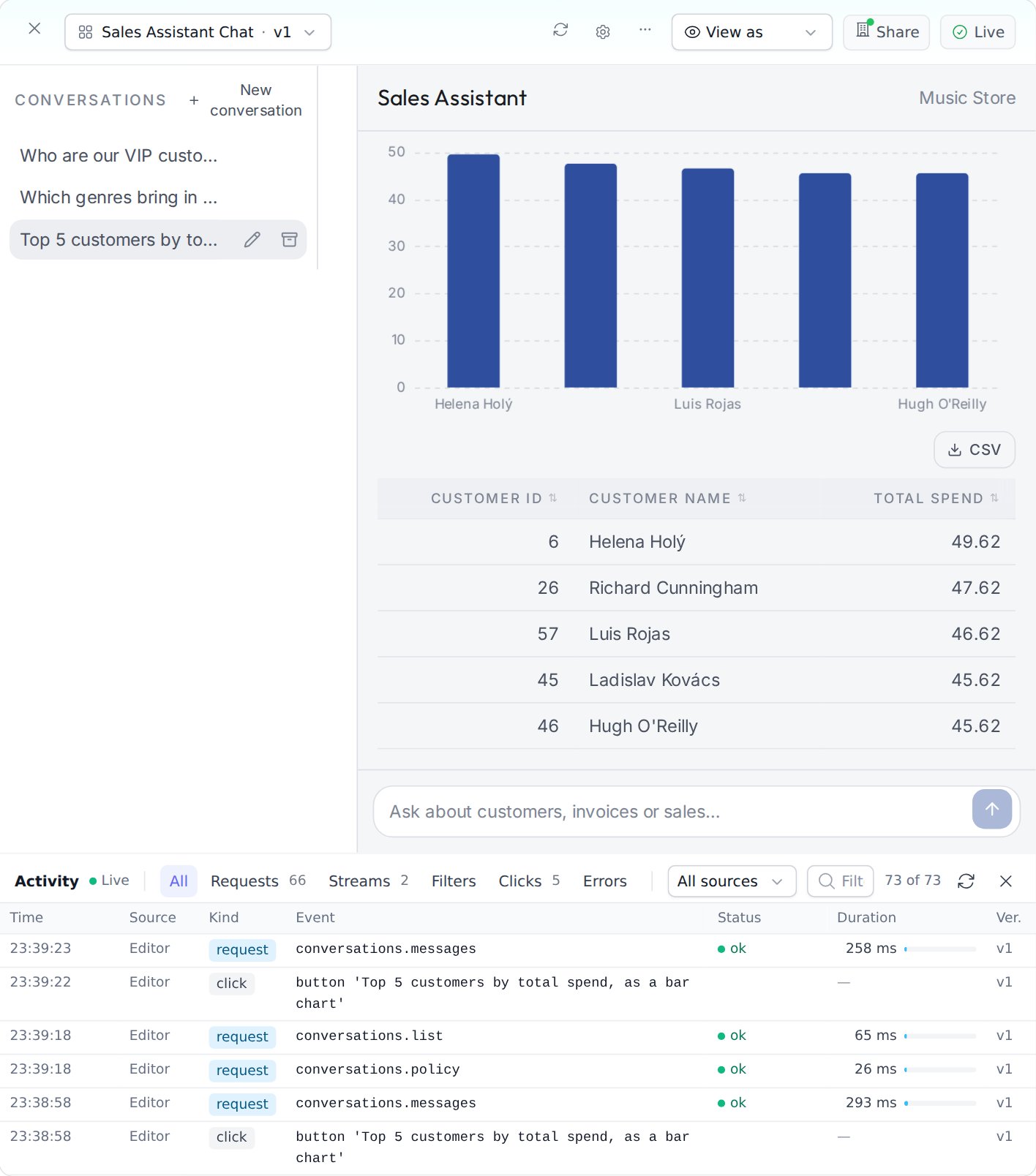
- Each row has the time, the Source, the kind (request, stream, filter, click, error or console), the event (for example
conversations.send), the status, the duration and the version. - Source is Editor for your own page, and Preview for BOW’s automatic check. Activity is recorded only for editors’ own sessions and BOW’s preview, never for viewers or inside embeds. Live means your page’s events appear as they happen; the preview’s arrive every few seconds.
- Filter by All, Requests, Streams, Filters, Clicks and Errors (which also lists console events), by source, or by text. Drag the pane’s top edge to resize it.
- Open a row to see its detail, and for requests and streams the Request, Response and Stream that the call carried.
Test inside an embed
Before you hand the app to the integration team:- Publish the app and share it with a test group.
- On the Embed tab, allow the application and copy its snippet. See Embed a chat assistant.
- Open the host page as an ordinary employee, not as the app’s owner.
- a question streams an answer with its table or chart, Stop interrupts it, and a follow-up works;
- the conversation list reopens past conversations, and a second employee sees none of the first one’s;
- the panel fits a narrow window and the requested language, right to left included;
- closing and reopening the floating panel keeps the conversation;
- changing the record in the host changes the context the app shows;
- an employee without access sees the “You don’t have access to this” message, not an error.