
The KMS Lighthouse connector is part of the Enterprise Edition, and is currently in beta.
What the agent can do
- Search every article and scenario the KMS identity can see (limited to one layout when Layout ID is set).
- Browse the KMS folder tree, starting at the Root folder ID when one is set. Each entry has a path made of folder names, ending in the title, for example
Procedures/Accounts/Reset a password.txt. - Read an article: its title, kind, version, language, last update date and summary, followed by the article text grouped by tab.
- Read a scenario: the decision tree as an indented outline, with each step’s text and the options that lead to the next steps. Images in a step are shown as links and are never fetched.
Before you start
- An Enterprise license key. See License Key.
- The KMS Lighthouse URL of your tenant, for example
https://example.lighthouse-cloud.com. - A KMS account allowed to use the KMS public API. Ask your KMS administrator for one. For a shared connection this is usually a dedicated service account whose KMS permissions cover the content the agents should see.
- An API token for that account (recommended), or its username and password.
- Network access from the BOW server to the KMS tenant over HTTPS. The connector does not use an outbound proxy, so BOW must be able to reach the tenant directly.
Connect in BOW
Go to Data Sources → Add data source and choose KMS Lighthouse. Fill in the fields, pick an authentication method, then click Connect.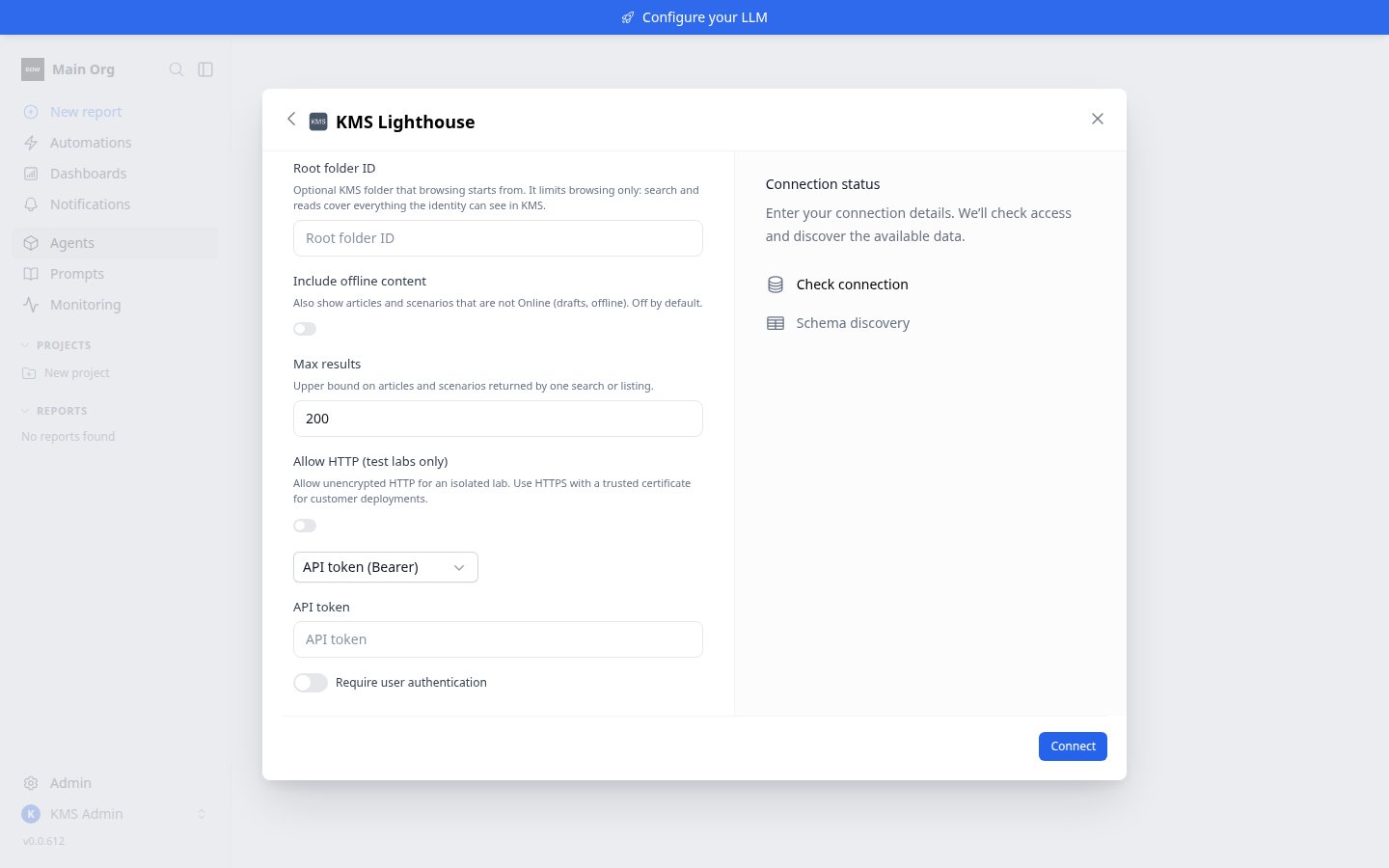
Fields
Authentication
Choose the method in the authentication dropdown. Both methods work for a shared connection and for per-user connections. API token (Bearer) (the default, and the recommended method)
The token is sent with every call and never logs in. When KMS refuses it, the token is wrong or no longer valid: get a new one from KMS and save it again.
Password in URL (undocumented)
When KMS rejects a username and password, BOW sends no new login with that same username and password for five minutes. This keeps a wrong password from locking the KMS account through repeated retries. Saving a corrected password logs in again straight away.
Shared or per-user access
The Require user authentication toggle on the connection form decides whose KMS account the agent reads with. See Authentication and access for how this works across connectors.On a per-user connection, an org admin (or someone allowed to manage connections) who has not connected their own account reads with the connection’s account, not with their own KMS permissions. Connect your own account to read as yourself. Owning the agent does not change this: an owner who is not an admin connects like any other member.
Connect your own KMS account
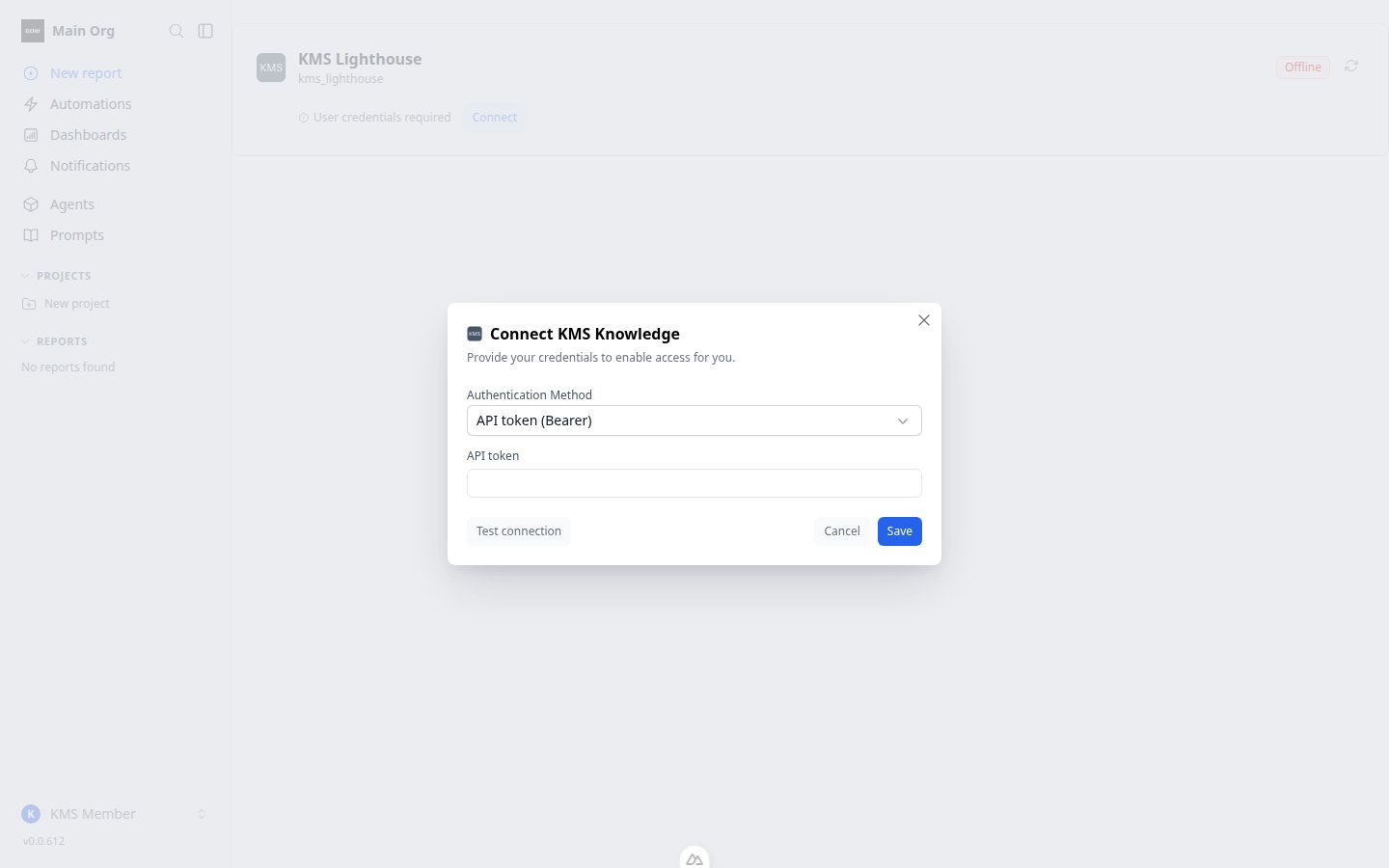
On a per-user connection, each member connects once:- Open the agent and find the KMS Lighthouse connection, then click Connect.
- Choose the Authentication Method: API token (Bearer), or Password in URL (undocumented).
- Paste your token, or enter your KMS username and password.
- Click Test connection to check it, then Save.
What the root folder does
What one KMS identity can see is decided by KMS: that account’s permissions, plus Layout ID for search. Root folder ID limits browsing only:- Browsing, in the agent and on the agent’s Files tab, starts at the root folder. A folder outside it cannot be opened.
- Search covers everything the identity can see in KMS (in the layout, when one is set).
- Reading works for any article or scenario the identity may open, also outside the root folder.
Online and offline content
By default only Online content is shown. Offline articles, scenarios and folders are left out of search and browsing, and reading one answers “Not found in KMS Lighthouse, or not available to this identity.” Turn on Include offline content to list, search and read offline content too. Each entry then shows whether it is online or offline.Test the connection
Test connection signs in, reads the top of the folder tree, and on success shows “Connected successfully” with a document count. That count comes from a short, bounded listing, so on a large knowledge base it is lower than the real total. A test with a username and password always logs in fresh. The test can fail with these messages:
You can still save a connection whose test failed, so you can fix a wrong id afterwards. A shared connection that keeps failing its automatic checks is turned off. The agent then tells users that the KMS Lighthouse connection is inactive and to ask an admin to test it. One successful test turns it back on.
Run diagnostics
When a connection does not behave as expected, Run diagnostics checks the network, the certificate, the login and how KMS answers, and produces a report you can send to BOW support.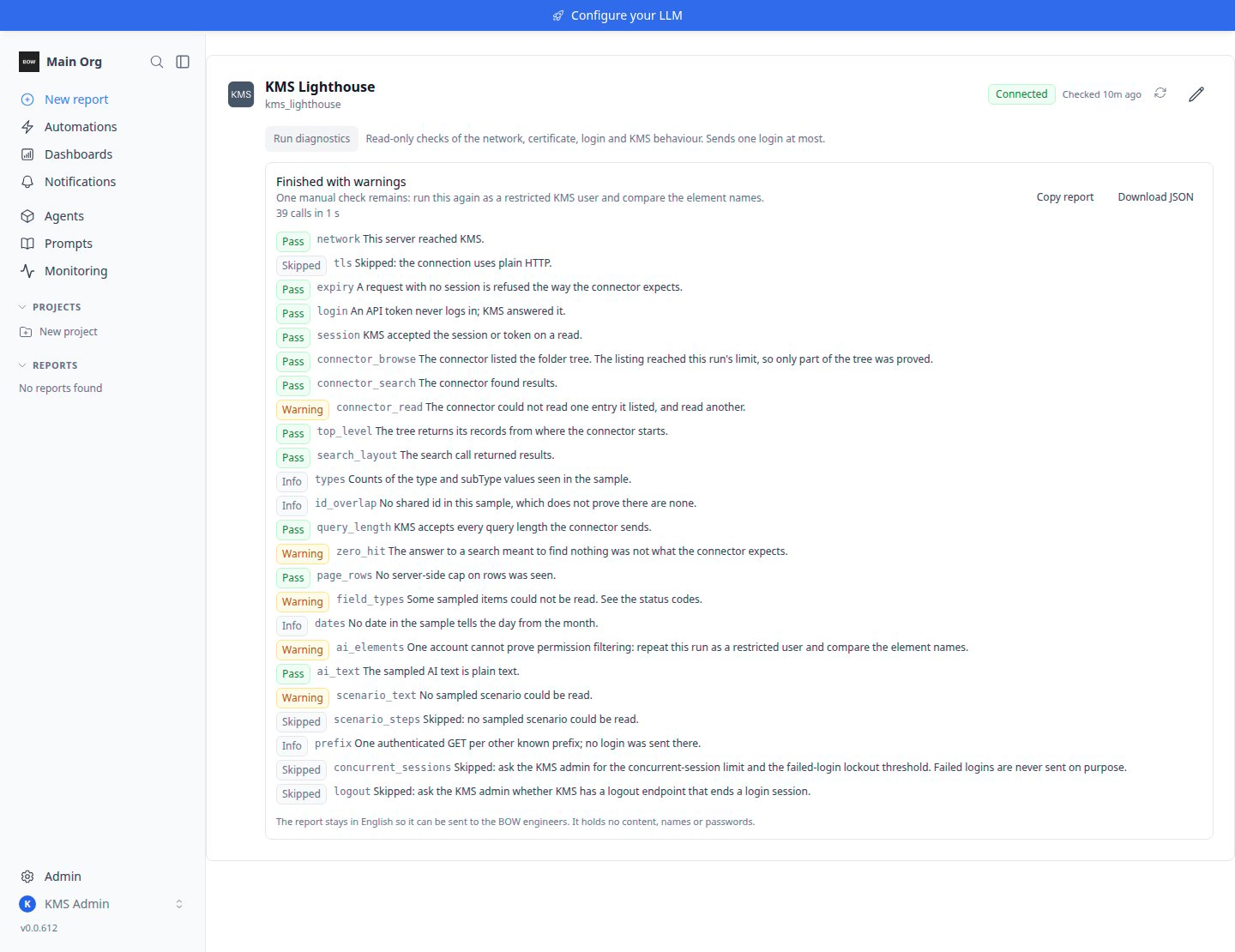
- Who can run it. The button is on the KMS Lighthouse connection card of the agent, for people who can manage the connection.
- What it sends. Read-only checks only. It sends at most one login, never retries a rejected one, and respects the five-minute pause after a rejected password. It never writes to KMS.
- How long it takes. Up to 90 seconds. One run per connection at a time.
- Whose account. The same account the agent would read with for you: your own KMS sign-in on a per-user connection, or the connection’s account (see Shared or per-user access).
- What the report holds. Check names, counts, status codes and pass or fail results, plus the host, the API prefix, the authentication method and the BOW version. It holds no document content, titles, folder names, usernames, passwords or tokens. The report stays in English so it can be sent to the BOW engineers.
- Sharing it. Copy report copies it to the clipboard; Download JSON saves it as a file. Copying needs an HTTPS address, so on a plain-HTTP install use Download JSON.
When a run fails
A failed run names the stage it stopped at (“Failed at: …”).Limits
- Results per search or listing are capped by Max results. A search that hits the cap says its results may be incomplete. A long listing can stop before the end of a large folder tree, so the agent opens a specific folder by its path or searches instead.
- Search text is limited to 200 characters; the rest is cut.
- Very large scenarios are shortened, with a marker where steps are not shown.
- Renaming a folder in KMS changes the paths of everything in it.
Not supported
- Outbound proxies. The connector does not use proxy settings. A site that reaches KMS only through a proxy cannot use it.
- The KMS secret-key (hash) login from the KMS “API users” area. Use an API token or a username and password.
- Single sign-on or OAuth to KMS.
- Writes of any kind to KMS.
- KMS AI answers, suggestions, categories, glossary terms, related items, attachments, and images.
Troubleshooting
An item outside the root folder still shows up in search
An item outside the root folder still shows up in search
This is expected. Root folder ID limits browsing only. Search and reads follow the KMS account’s permissions. To hide content, restrict the account’s permissions in KMS. A Layout ID only narrows search; an item outside it can still be read.
A member is asked to connect
A member is asked to connect
The connection is per-user and that member has not saved their own KMS sign-in. They click Connect and add their token or login. This includes a data-source owner who is not an org admin.
An admin sees more than their own KMS account allows
An admin sees more than their own KMS account allows
On a per-user connection, an admin or connection manager who has not connected their own account reads with the connection’s account. Connect your own account to read as yourself.
The login fails again right after fixing the password in KMS
The login fails again right after fixing the password in KMS
After a rejected login, BOW waits five minutes before trying the same username and password again. Wait, or save the corrected password on the connection, which logs in straight away.
The API token is refused when saving
The API token is refused when saving
The token can contain only plain letters, digits and punctuation, with no spaces. Copy it again from KMS Lighthouse and paste it as plain text.
The agent says the KMS Lighthouse connection is inactive
The agent says the KMS Lighthouse connection is inactive
A shared connection that keeps failing its automatic checks is turned off. Fix the cause, then test the connection again. One successful test turns it back on.
Offline or draft articles are missing
Offline or draft articles are missing
Only Online content is shown by default. Turn on Include offline content.
The document count after Test connection seems low
The document count after Test connection seems low
The count comes from a short, bounded listing, so it is lower than the real total on a large knowledge base. Search and reads are not limited by it.
Diagnostics are cut off on a large or slow tenant
Diagnostics are cut off on a large or slow tenant
A gateway or load balancer in front of BOW with a 60-second read limit can end a run early. Raise that limit for this request, or run diagnostics from inside the network.
Related
- OpenText Documentum — another live, read-only document connector where the source system’s permissions apply.
- SharePoint Server (on-prem) — on-premises document libraries with shared or per-user Windows credentials.
- Authentication and access — shared vs per-user credentials across connectors.